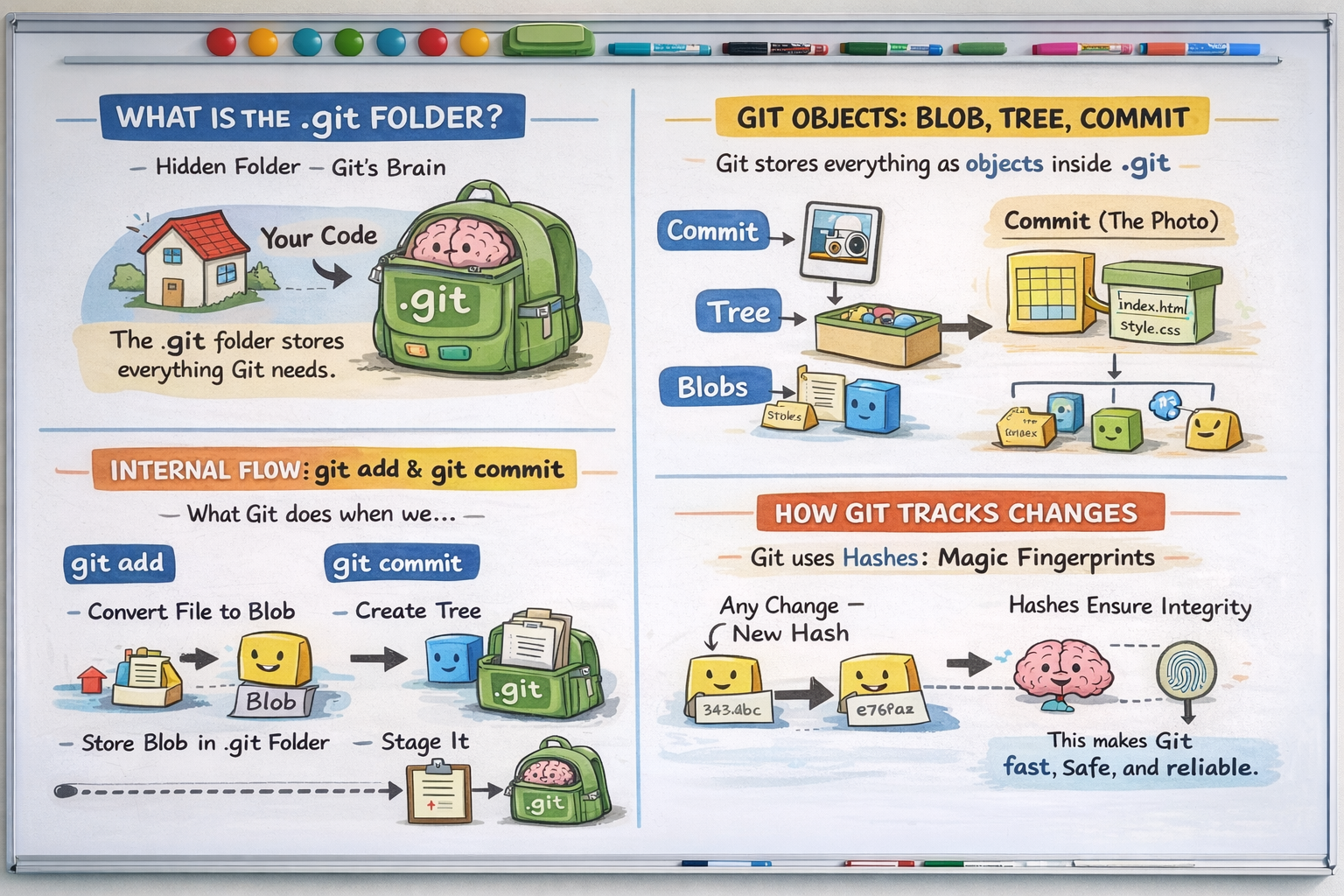
How Git Works Internally in (.git Folder)
Focused on : Product Design and Development
Code Architecture, Scaling, Data processing
Team building and co-ordinate with management
Use of AI Agent to build effective web applications
Building Live real time B2C business platforms
Let’s Start With a Simple Story
Imagine you have a magic school bag.
Inside that bag:
Every homework version you ever wrote is saved
Nothing is ever lost
You can go back to any day and see what you wrote
Even if you tear a page, the bag remembers it
That magic bag is the .git folder.
You don’t see it normally, but Git lives inside it.
What Is the .git Folder?
When you run:
git init
Git creates a hidden folder called:
.git
Very Important Rule
Your project files are outside.
Git’s brain is inside.git.
Your code = school notebook.git folder = teacher’s record book
Why Does the .git Folder Exist?
The .git folder exists to answer these questions:
What files do you have?
What did they look like yesterday?
Who changed them?
When were they changed?
Can we go back safely?
Without .git, Git knows nothing.
What’s Inside the .git Folder? (Simple View)
Think of .git like a library.
Inside it, Git stores:
File content
Folder structure
History
Labels for versions
You don’t need to open it daily—but understanding it makes Git feel easy.
Git Objects: Blob, Tree, Commit (Very Simple)
Git stores everything as objects.
Only three main types matter.
Let’s explain them using a toy box example.
1. Blob (The Toy)
A Blob stores file content only.
It does NOT know the file name
It does NOT know the folder
It only knows: “Here is the content”
Example:
Hello World
That text becomes a blob.
Same content = same blob (even if file name changes)
2. Tree (The Box)
A Tree is like a box that arranges toys.
It knows file names
It knows folder structure
It points to blobs
Example:
project/
 ├── index.html
 └── style.css
Tree says:
index.html → blob A
style.css → blob B
3. Commit (The Photo)
A Commit is a photo of the whole project.
It contains:
A tree (folder structure)
A message (“Added homepage”)
Who made it
Time
Parent commit (previous photo)
Commit = snapshot in time
Relationship Between Commit, Tree, and Blob
Think like this:
Commit
  ↓
 Tree
  ↓
 Blobs (file contents)
Git does NOT save files again and again
Git saves connections between objects
That’s why Git is fast and smart.
What Happens Internally During git add?
You write or change a file.
Git says:
“Okay, I will prepare this.”
Internally:
Git reads file content
Converts it into a blob
Stores it inside
.git/objectsMarks it as staged
Git is saying:
“I know this content now.”
What Happens Internally During git commit?
Now you say:
git commit
Internally:
Git creates a tree (folder map)
Git creates a commit object
Commit points to:
Tree
Parent commit
HEAD moves to this new commit
Git is saying:
“This version is now official.”
How Git Tracks Changes (Smart Trick)
Git does not track files.
⚠️ Important:
Git tracks content, not file names.
If content doesn’t change:
Git reuses the same blob
No extra storage
This is why Git is:
Fast
Space efficient
Reliable
How Git Uses Hashes (Magic Fingerprints)
Every Git object gets a hash.
A hash is like:
A fingerprint
A barcode
A secret code
Example:
a3f5c9e4...
Why Hashes Matter
If content changes → hash changes
If hash changes → Git knows something is wrong
No corruption possible
Git becomes trustworthy by design
Mental Model (Remember This Forever)
Think of Git like this:
Blob = content
Tree = structure
Commit = snapshot
.git= brainHash = fingerprint
Git is not magic.
Git is organized memory.
Final Thought for Students
You don’t need to memorize commands.
You need to understand the story.
Once the story is clear:
Commands make sense
Fear disappears
Confidence grows